
Upgrade WordPress to PHP 8.4 Safely: A Step-by-Step Checklist
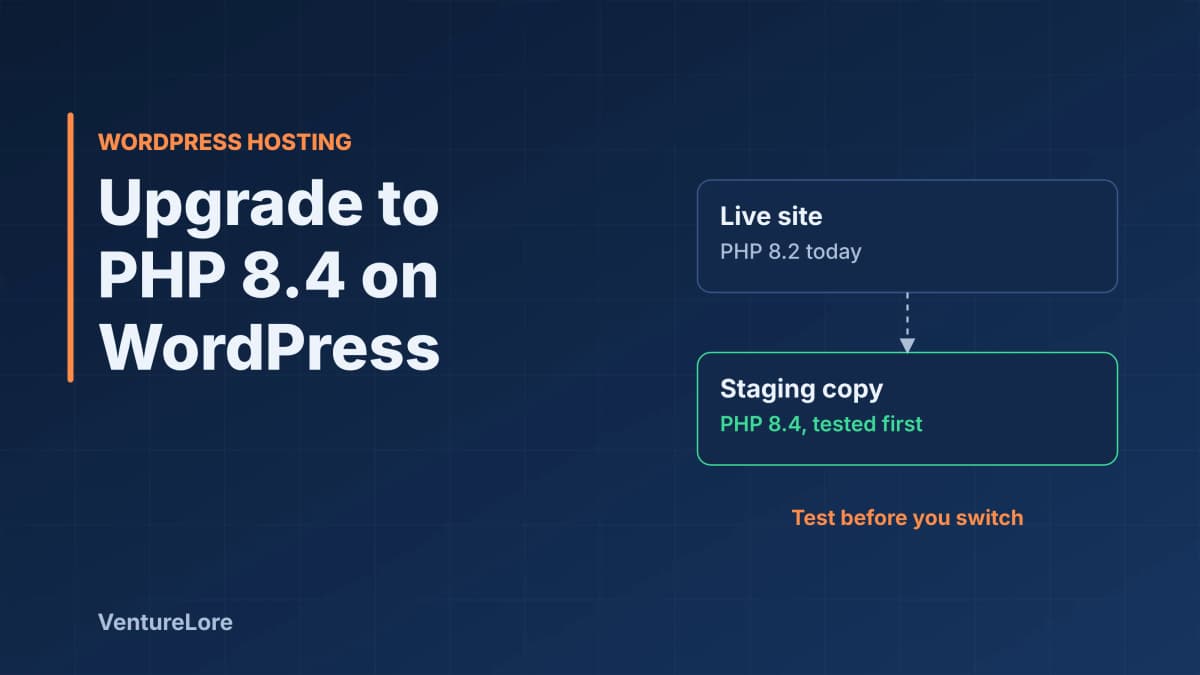
WordPress 6.8 and later are documented as fully supporting PHP 8.4. Here is the safe order to upgrade: back up, stage, update, test, switch and roll back.
Start with the essentials
Quick answer: WordPress 6.8 and later are documented as fully supporting PHP 8.4, so for most sites the upgrade is safe once you have tested it on a copy of the site. The safe order is: back up, clone to staging, update WordPress, plugins and theme, switch staging to PHP 8.4 with the debug log on, test the pages that matter, then switch production and watch the log.
Why upgrade now
PHP branches get two years of active support and then two more years of security-only fixes, according to php.net's supported versions page. The page currently lists four branches. PHP 8.2 security support ends on 31 December 2026, PHP 8.3 on 31 December 2027, PHP 8.4 on 31 December 2028 and PHP 8.5 on 31 December 2029. Older branches, including 8.1, are no longer on that list.
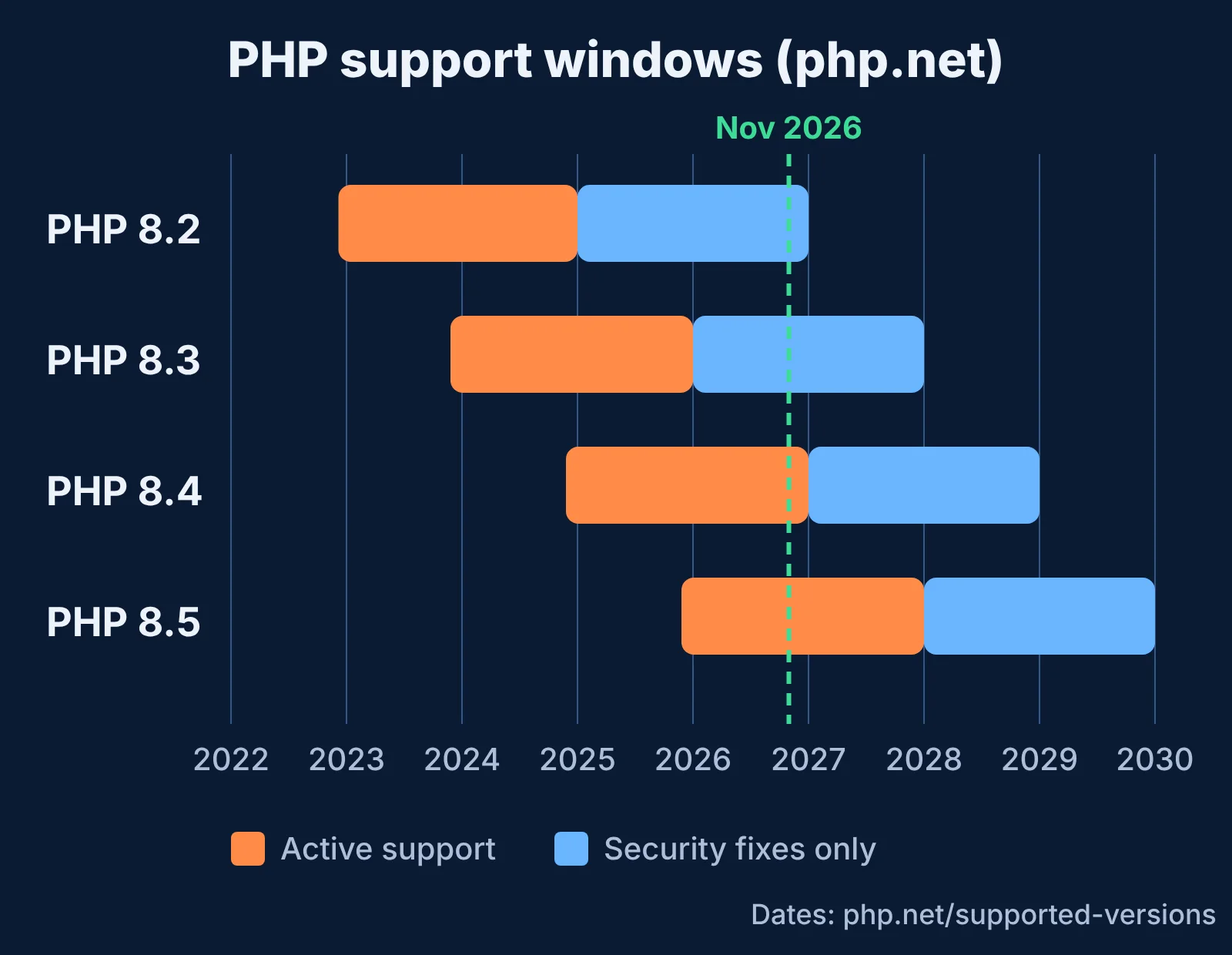
If your host still runs PHP 8.2, its security fixes stop at the end of this year. Moving to 8.4 gives you security support until the end of 2028 without jumping to the newest branch. Running an unsupported PHP version is also the kind of weakness attackers look for, which is why we covered how to check your PHP version and patch in a separate guide.
Is WordPress compatible with PHP 8.4?
The WordPress core team's PHP support clarification (22 May 2026) says WordPress 6.8 and later are documented as fully supporting PHP 8.4, and WordPress 6.9 and 7.0 as fully supporting PHP 8.5. The same post says the old "beta" support label has been retired, and that the minimum recommended PHP version remains 8.3.
That statement covers WordPress core only. Your plugins and theme are written by other people, and each one needs to work on 8.4 too. That is what the staging test is for.
What usually breaks on PHP 8.4
The most common issue is a deprecation, not a crash. PHP 8.4 deprecates a function parameter that has a non-nullable type but a default value of null. The notice reads "Implicitly marking parameter $value as nullable is deprecated." WordPress core fixed its own code for this in ticket #60786, changing declarations to explicit nullable types such as ?string $test = null.
Plugins and themes that have not made the same change will write these notices to your error log. A notice is a warning to the developer. Still, on a site that prints errors to the screen, it can show up on public pages, so keep display off in production. If a plugin is old, abandoned or generates many notices, that is a reason to replace it before you upgrade.
Step-by-step upgrade
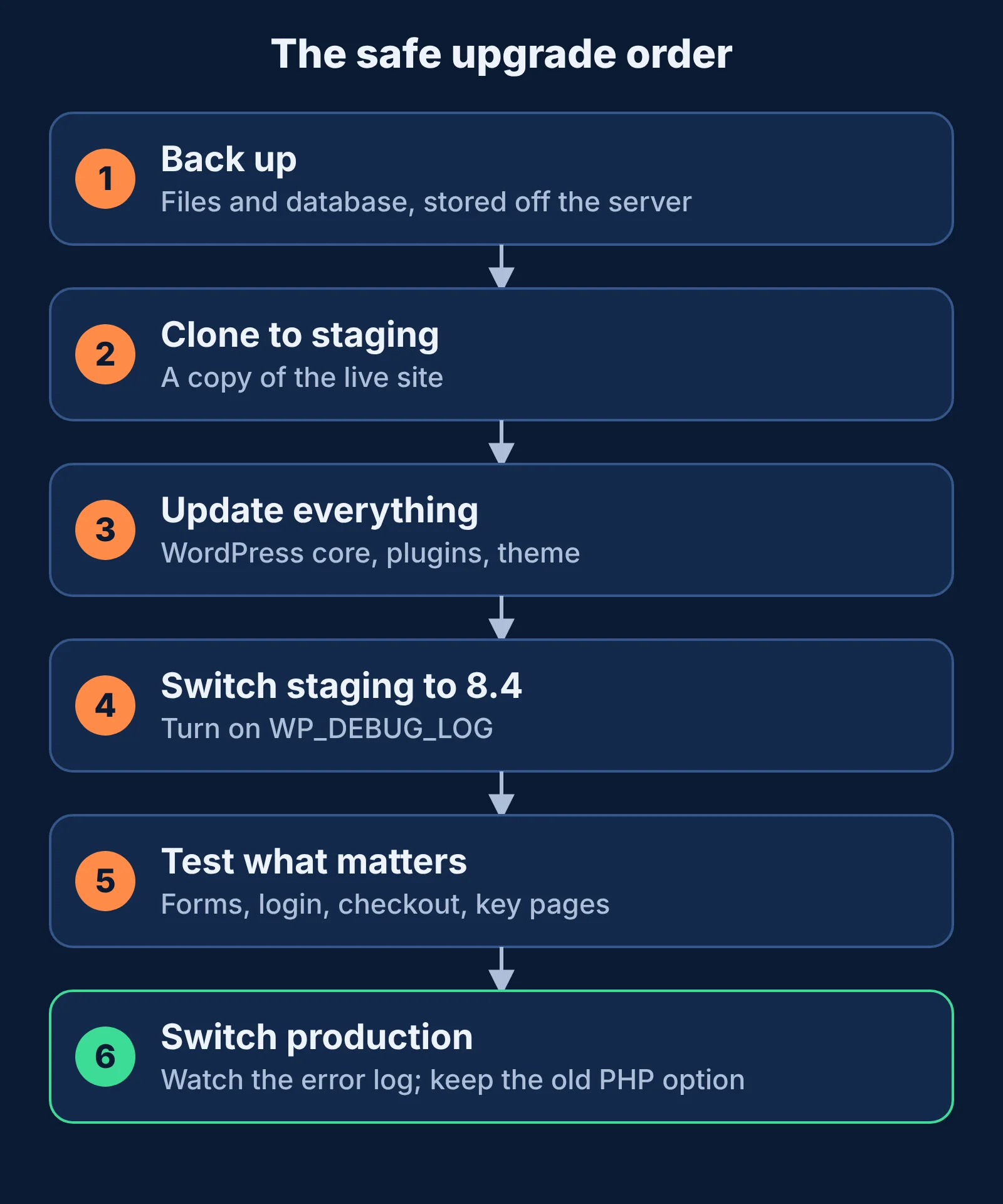
1. Back up the site
Take a full backup of the files and the database, and store a copy somewhere other than the server. Confirm you know how to restore it.
2. Clone the site to staging
Many hosts offer a one-click staging copy. If yours does not, a plugin or a manual copy of files and database to a subdomain works. Block search engines on the staging copy.
3. Update WordPress, plugins and theme
Update on staging first. Remove plugins you no longer use. Check each remaining plugin's page on WordPress.org for a recent update and its "tested up to" version.
4. Switch staging to PHP 8.4 and turn on logging
Change the PHP version in your hosting control panel, then add these lines to wp-config.php on staging so errors go to a file and not to the page:
define( 'WP_DEBUG', true );
define( 'WP_DEBUG_LOG', true );
define( 'WP_DEBUG_DISPLAY', false );
Errors are written to wp-content/debug.log. To check which PHP version a site is running, open Tools, Site Health, Info, Server in the WordPress dashboard.
5. Test what matters
Visit the home page, a post, the contact form, search, login, and checkout if you sell anything. Then read debug.log. Fatal errors must be fixed before you continue. Deprecation notices tell you which plugin or theme file needs an update from its developer.
6. Switch production and watch the log
Pick a quiet time, change the PHP version on the live site, and test the same pages. Keep WP_DEBUG_DISPLAY off. If something breaks, switch back to the previous PHP version in the control panel, which is quick and does not touch your content, then fix it on staging.
Should you go straight to PHP 8.5?
PHP 8.5 is listed on php.net with support until 31 December 2029, and WordPress 6.9 and 7.0 are documented as fully supporting it. Choosing between 8.4 and 8.5 mostly depends on what your host offers and how up to date your plugins are. The steps above are identical for either version, so you can upgrade to 8.4 now and move up later.
Frequently asked questions
Which PHP version should my WordPress site use?
The WordPress core team says the minimum recommended version is PHP 8.3 and that WordPress 6.8 and later fully support 8.4. PHP 8.4 receives security fixes until 31 December 2028, according to php.net.
Will upgrading to PHP 8.4 break my site?
It can, mainly through old plugins or themes. Core WordPress is documented as compatible, so test your plugins and theme on a staging copy before you change the live site.
What does the implicitly nullable deprecation mean?
PHP 8.4 warns when a parameter has a non-nullable type and a default of null. It is a notice for developers. The fix is to declare the type as nullable, for example ?string.
Can I switch back if something goes wrong?
On most hosts you can change the PHP version in the control panel at any time, so rolling back is quick. Confirm that with your host before you start.
Sources
Explore related topics
Continue reading
More from this topic

Cybersecurity Essentials for Remote Workers: Protecting Sensitive Data Outside the Office
Working from home or cafes exposes your data to vulnerabilities standard office firewalls protect against. Here are the non-negotiable security habits every remote professional must adopt.
Windows 11 Running Slow? 7 Fixes From Microsoft's Own Guide
Windows 11 running slow? Follow Microsoft's own steps in a safe order: updates, malware scan, free disk space, startup apps, power mode and restart.
Chrome Using Too Much RAM? 6 Fixes That Work
Chrome using too much memory? Find the tab or extension responsible with Task Manager, then fix it with Memory Saver, extension cleanup and updates.