
Windows 11 Running Slow? 7 Fixes From Microsoft's Own Guide
Windows 11 running slow? Follow Microsoft's own steps in a safe order: updates, malware scan, free disk space, startup apps, power mode and restart.
Start with the essentials
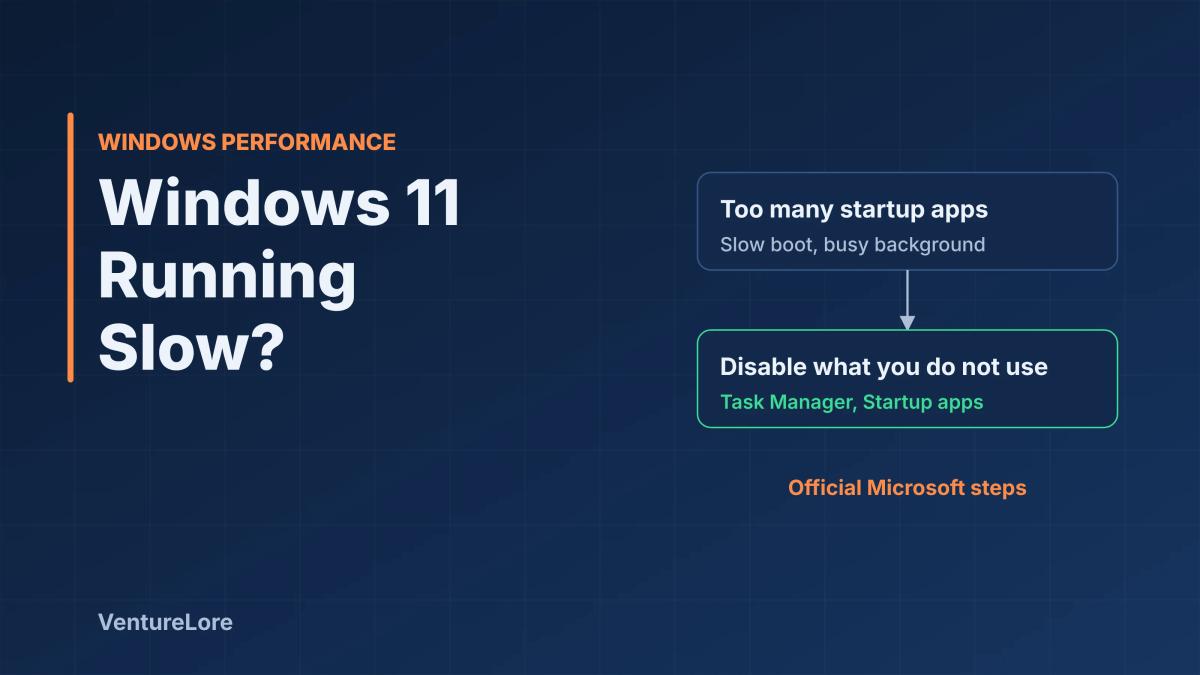
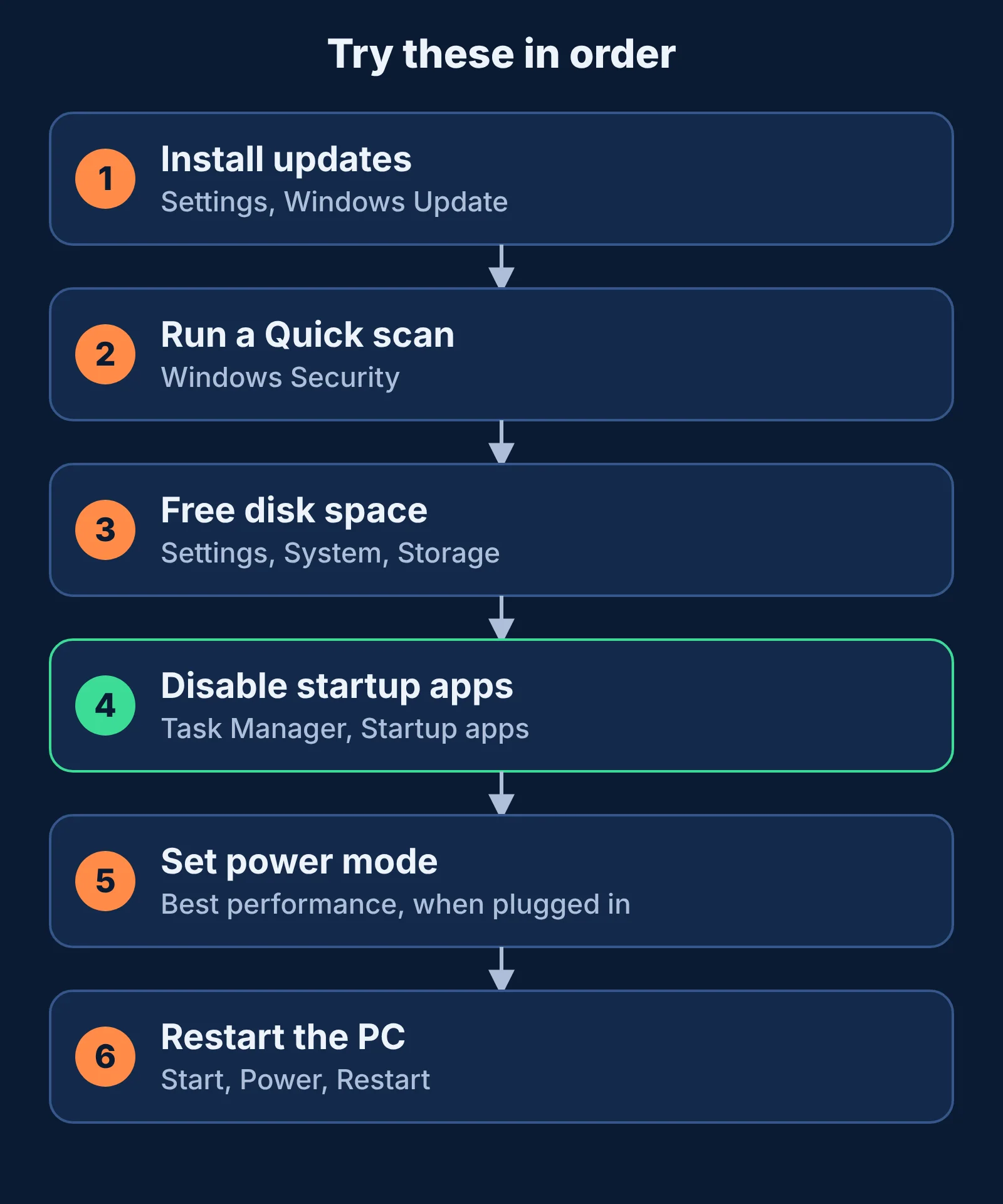
Quick answer: To speed up a slow Windows 11 PC, install all Windows updates, run a Quick scan in Windows Security, free up disk space with Storage Sense, disable startup apps you do not need in Task Manager, and restart. These are the steps Microsoft itself recommends on its support page for improving PC performance, and they are safe to try in this order.
Why Windows 11 slows down
A PC usually slows down for ordinary reasons: pending updates, a nearly full drive, too many apps starting with Windows, or apps running in the background. Microsoft's tips to improve PC performance in Windows covers both Windows 11 and Windows 10 and starts from these everyday causes rather than from risky tweaks. The page also notes that very old hardware may see limited gains, and that upgrading may be the better long-term fix.
Step 1: Install Windows updates and optional drivers
Go to Settings, Windows Update and check for updates, then install any that are available. After that, open Advanced options, Optional updates and install any optional driver updates. Your PC may restart.
Step 2: Run a malware scan
Go to Settings, Privacy & security, Windows Security, Virus & threat protection and run a Quick scan. Unwanted software running in the background is one cause of a sudden slowdown.
Step 3: Free up disk space
- Storage Sense: go to Settings, System, Storage, Storage Sense and select Run Storage Sense now.
- Temporary files: go to Settings, System, Storage, Temporary files, tick the items you want to remove and select Remove files.
- Disk Cleanup: search for "Disk Cleanup" in Start, open it and choose the drive.
Also uninstall apps you no longer use under Settings, Apps, Installed apps by selecting the three-dot menu next to the app and choosing Uninstall.
Step 4: Disable startup apps
Press Ctrl+Shift+Esc to open Task Manager, select Startup apps, right-click an app you do not need at sign-in and choose Disable. This does not uninstall the app. It only stops it launching with Windows, so you can re-enable it later if needed.
Step 5: Limit background apps
Go to Settings, Apps, Installed apps, open the three-dot menu for an app, choose Advanced options, and under Background app permissions set Let this app run in the background to Never. Do this for apps you rarely use.
Step 6: Adjust power mode and visual effects
- Power mode: go to Settings, System, Power & battery and set Power mode to Best performance. Microsoft warns this uses more power and can drain a laptop battery faster, so use it only when you need it.
- Visual effects: search Start for "Adjust the appearance and performance of Windows", open it, and on the Visual Effects tab choose Adjust for best performance. This turns off animations and effects.
Step 7: Watch resource use, then restart
Open Task Manager with Ctrl+Shift+Esc and check the Processes tab for apps using a lot of CPU, memory or disk. Close the ones you do not need, including extra browser tabs. If the PC is still slow, restart it from Start, Power, Restart, as Microsoft suggests. A restart clears the memory that long-running apps have built up.
Optional: Optimize drives and notifications
Search Start for "Defragment and Optimize Drives", select a drive and choose Optimize. You can also reduce interruptions under Settings, System, Notifications by turning off notifications from apps you do not need. Microsoft also recommends its PC Manager app for cleaning storage and managing startup apps, but the built-in steps above work without installing anything.
Frequently asked questions
Why is my Windows 11 PC so slow all of a sudden?
Common causes are pending updates, low disk space, too many startup apps or background apps, and unwanted software. Work through the steps above in order and check Task Manager to see what is using resources.
Is it safe to disable startup apps?
Yes for most apps. Disabling only stops an app launching at sign-in, and you can turn it back on in Task Manager. Leave security software enabled.
Does Best performance power mode help?
It can, but Microsoft notes it uses more power and can drain laptop batteries faster. Use it when you need the extra performance.
Do these steps work on Windows 10?
Microsoft's page covers Windows 10 and Windows 11, but menu locations can differ. The paths in this guide are the Windows 11 layout.
Sources
Explore related topics
Continue reading
More from this topic

Cybersecurity Essentials for Remote Workers: Protecting Sensitive Data Outside the Office
Working from home or cafes exposes your data to vulnerabilities standard office firewalls protect against. Here are the non-negotiable security habits every remote professional must adopt.
Chrome Using Too Much RAM? 6 Fixes That Work
Chrome using too much memory? Find the tab or extension responsible with Task Manager, then fix it with Memory Saver, extension cleanup and updates.
Windows 10 ESU Extended to October 2027: How to Enroll
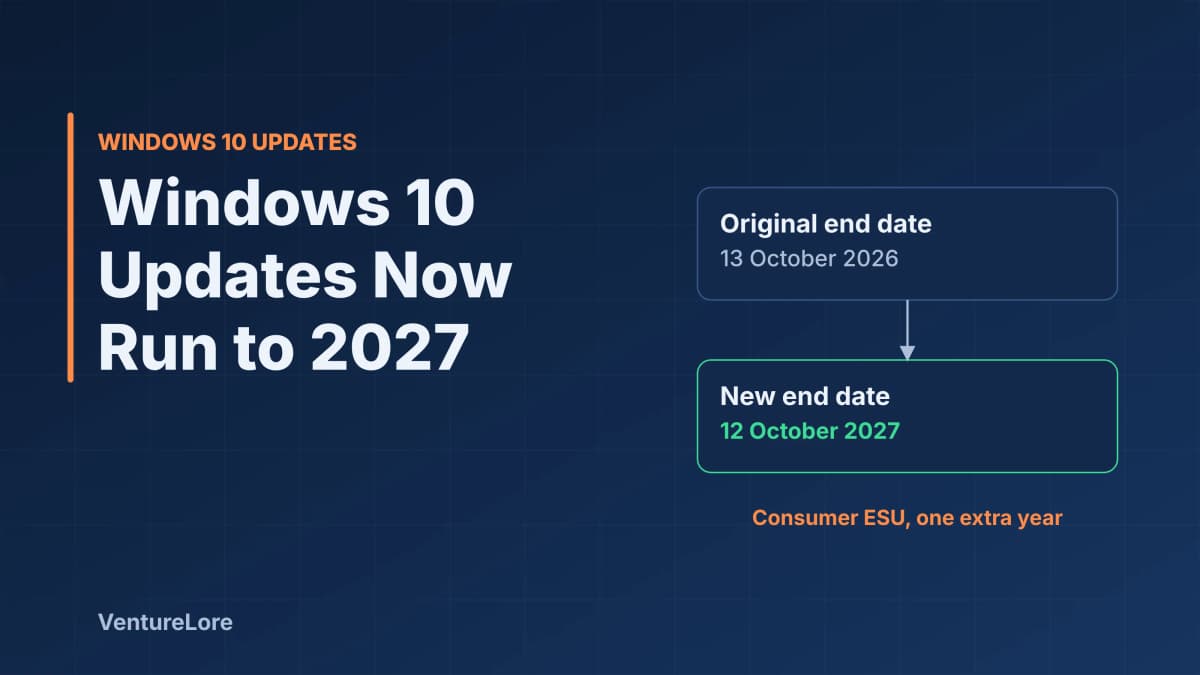
Microsoft extended consumer Windows 10 security updates to 12 October 2027. See who qualifies, the three ways to enroll (free or $30), and what to do with the extra year.