
Chrome Using Too Much RAM? 6 Fixes That Work
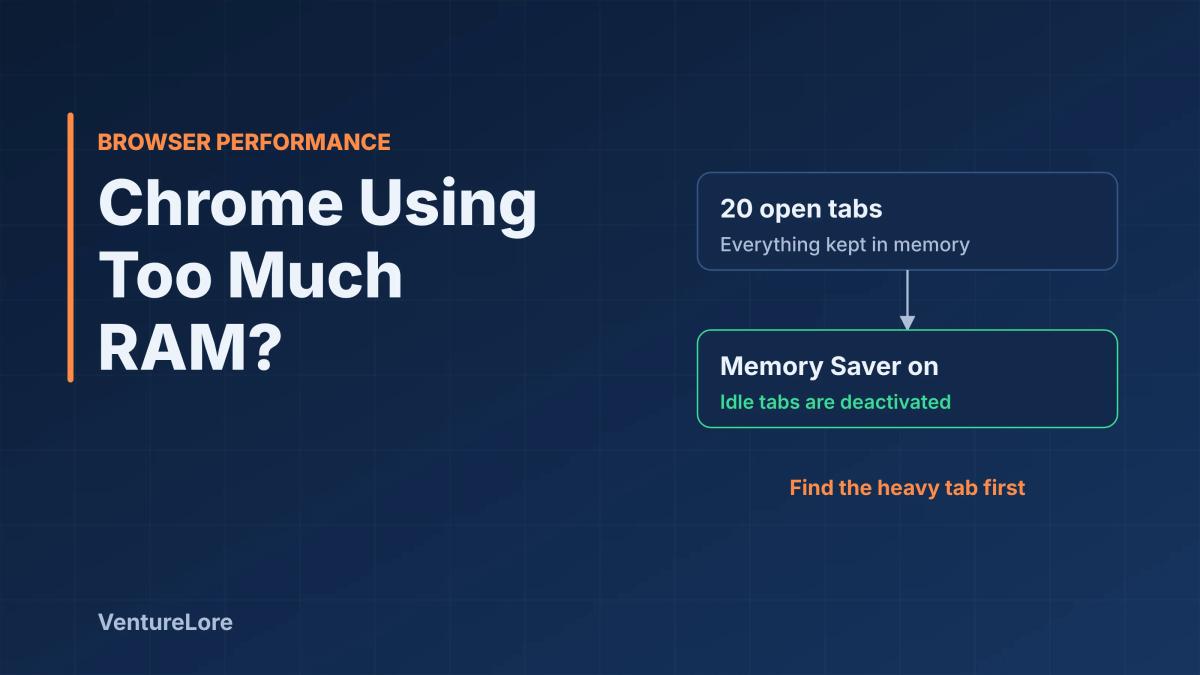
Chrome using too much memory? Find the tab or extension responsible with Task Manager, then fix it with Memory Saver, extension cleanup and updates.
Start with the essentials
Quick answer: To fix Chrome using too much RAM, open Chrome's built-in Task Manager, find the tab or extension using the most memory and end it, then remove extensions you do not need and turn on Memory Saver under Settings, Performance. Keeping Chrome updated also helps, because Google ships performance fixes in updates.
Why Chrome uses so much memory
Chrome keeps each open tab, extension and background page working so that switching back to them is instant. That is fast, but every extra tab adds to the workload, as Google's own Chrome help page on slow performance notes. A few heavy pages, such as web apps, video sites or pages with many ads, can use far more memory than dozens of simple ones, so the number of tabs alone does not tell you what is slow.
Step 1: Find what is using the memory
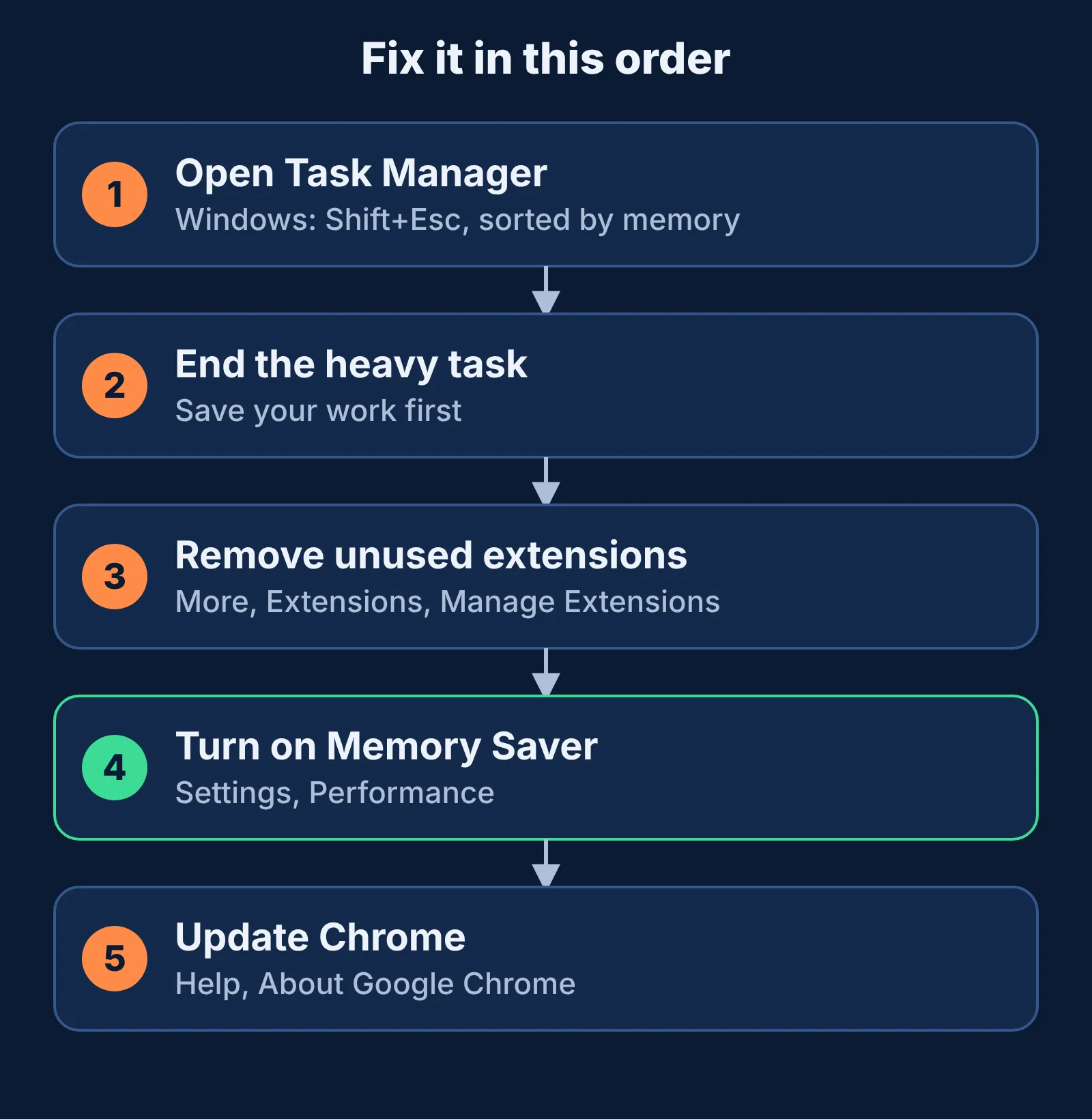
Chrome has its own Task Manager that lists every tab, extension and process with its memory use.
- On Windows, press Shift+Esc. On any system you can also open the three-dot menu, then More tools, then Task Manager.
- Click the Memory column to sort from highest to lowest.
- Look for one tab or extension far above the rest, and for items labeled "Background page".
Google's help page describes this same route, so this is the first thing to try before changing any setting.
Step 2: End the heavy task
Select the task using the most memory and choose End process. Save your work first, because anything unsaved in that tab or extension is lost. If the same site is at the top every time, that site is the problem, and it may be worth using it in a different browser or in a single tab.
Step 3: Remove extensions you do not need
Extensions run inside the browser and can keep background pages open. Go to the three-dot menu, then Extensions, then Manage Extensions, and turn off or remove any you do not use. Remove one at a time and watch the Task Manager, so you can see which one made a difference.
Step 4: Turn on Memory Saver
Memory Saver is Chrome's built-in way to free memory from tabs you are not using. According to Google's performance settings page, Chrome puts inactive tabs into a deactivated state and reloads them when you return to them.
- Open Settings, then Performance, and switch on Memory Saver.
- Choose Moderate, Balanced (the default Google recommends) or Maximum. This controls how long a tab sits idle before it is deactivated.
- Add sites you never want deactivated, such as a webmail tab, to the "Always keep these sites active" list.
Some tabs stay active whatever you choose: Google lists tabs playing audio or video, calls, screen sharing, downloads, pinned tabs, partially filled forms and tabs connected to USB or Bluetooth devices.
Step 5: See memory use per tab
Under Settings, then Appearance, you can turn on memory usage in the tab hover card. Hover over any tab and Chrome shows how much memory it is using, which makes it easy to spot a heavy page without opening the Task Manager.
Step 6: Update Chrome and review hardware acceleration
Open the three-dot menu, choose Help, then About Google Chrome, and install any update. If Chrome stutters on an older or low-end computer, you can try switching hardware acceleration off under Settings, then System, as Online Tech Tips suggests. Leave it on for newer machines with capable graphics, and change one thing at a time so you know what helped.
Other quick wins
- Close tabs you are finished with (Ctrl+W on Windows, Command+W on Mac).
- Avoid running many heavy apps at the same time as Chrome.
- If Chrome is still slow after all of the above, Google's page suggests resetting Chrome's settings to default and removing unwanted programs from your computer.
Frequently asked questions
Is it normal for Chrome to use a lot of RAM?
Yes, to a degree. Chrome trades memory for speed by keeping tabs and extensions ready. It becomes a problem when your computer starts to slow down or other programs struggle, which is when the steps above help.
Does Memory Saver reduce Chrome's RAM use?
It is designed to. It deactivates tabs you are not using and reloads them when you come back, according to Google. The saving depends on how many idle tabs you have.
How do I check which tab uses the most memory?
Press Shift+Esc on Windows to open Chrome's Task Manager and sort by Memory, or turn on memory usage in the tab hover card under Settings, Appearance.
Will ending a process lose my work?
Yes, anything unsaved in that tab or extension will be lost, so save first.
Sources
Explore related topics
Continue reading
More from this topic

Cybersecurity Essentials for Remote Workers: Protecting Sensitive Data Outside the Office
Working from home or cafes exposes your data to vulnerabilities standard office firewalls protect against. Here are the non-negotiable security habits every remote professional must adopt.
Windows 11 Running Slow? 7 Fixes From Microsoft's Own Guide
Windows 11 running slow? Follow Microsoft's own steps in a safe order: updates, malware scan, free disk space, startup apps, power mode and restart.

Windows 10 ESU Extended to October 2027: How to Enroll
Microsoft extended consumer Windows 10 security updates to 12 October 2027. See who qualifies, the three ways to enroll (free or $30), and what to do with the extra year.